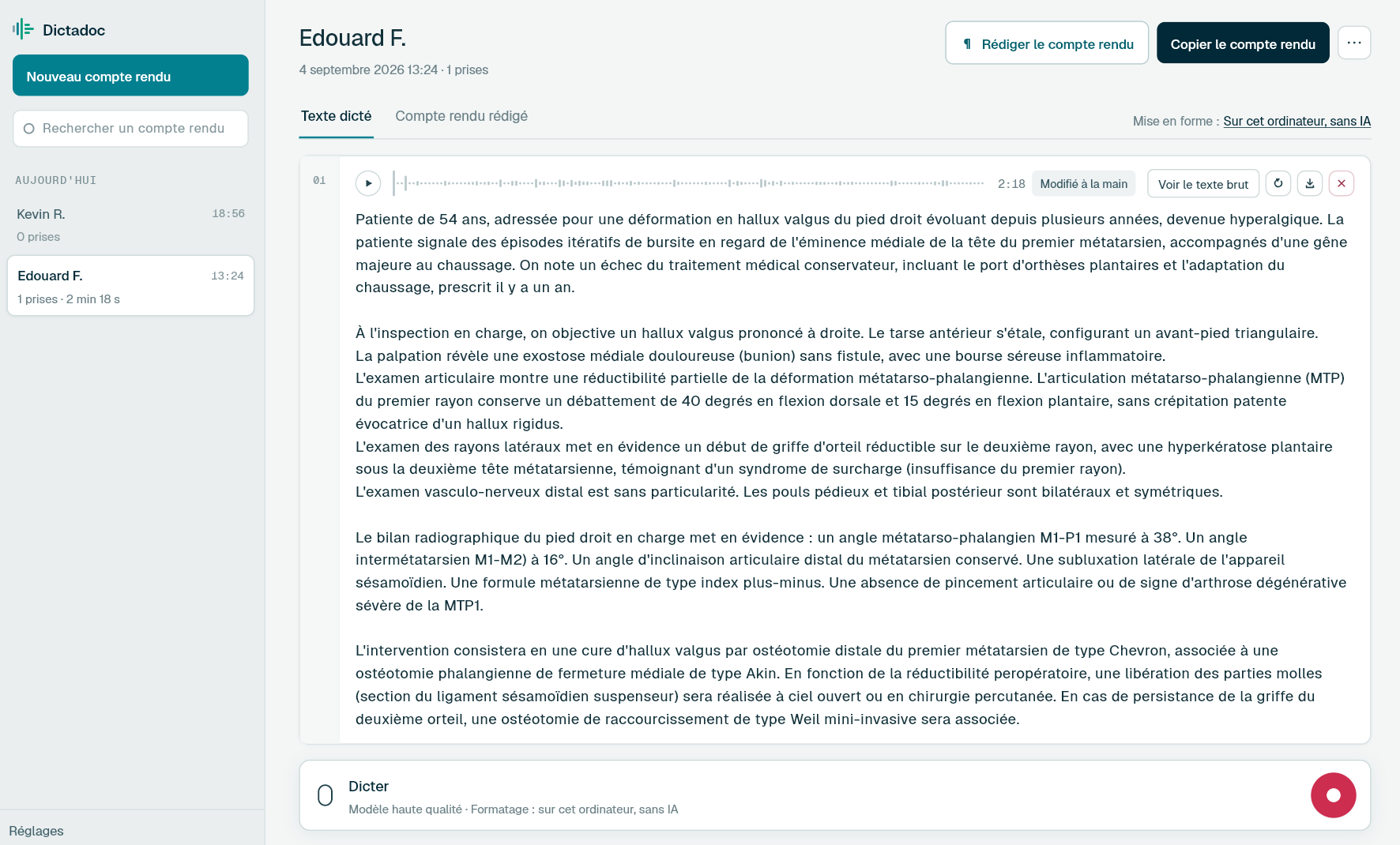
Dictate the findings between the otoscope and the nasendoscope, a dizziness assessment in several goes, and the operation note at the end of the list. Transcription runs on your computer, and Dictadoc writes the punctuation and line breaks you dictate.
An ENT clinic mixes examination, endoscopy and hearing tests. Each leaves a short text behind, and theatre days add more.
The clinic letter
Otoscopy, nose and throat examination, the conclusion and the plan, for the GP or paediatrician who referred the patient. Appointments are short and numerous, and the letters have to keep up with them.
The audiology report
Pure tone and speech audiometry, tympanometry, then the interpretation: type of hearing loss, side, impact and next steps. The GP reads it, and sometimes the hearing aid service too.
The flexible nasendoscopy findings
Nasal cavity, postnasal space, pharynx, larynx and vocal cord movement, described straight after the examination. For a hoarse voice or a suspected tumour every site matters, and the text records what is normal as well as what is not.
The operation note
Tonsillectomy, grommets, septoplasty, myringoplasty, thyroidectomy. Short procedures follow each other on a day-case list, and the notes get dictated between children or once the list is over.
Day to day
Where clinic loses the thread
A letter to write between examinations
Today
Between the otoscope, the nasendoscope and the audiometer, your hands are never free for long. The letter gets typed at the end of clinic, or stays as notes for the evening, when the details of the examination are less sharp.
With Dictadoc
Turn on a dictation key. The patient record stays in front: press to dictate, press again to start transcription. On the first press the floating panel appears over your windows and shows that recording is running, without ever taking over the keyboard.
Dictation key
Floating panel
A dizziness assessment in stages
Today
A patient referred with dizziness goes from the clinical examination to videonystagmography, then to audiometry. You note each result as it comes, and the final report gets pieced together from those fragments.
With Dictadoc
Dictate the examination, then stop. After the VNG, dictate the rest in the same report: it becomes a new take, filed after the first. If one of them is transcribed badly, run it again with a more precise model. The other takes stay as they are.
Dictation in several takes
Both ears in the same sentence
Today
Automatic punctuation does not follow the structure of an ENT examination. Right ear and left ear end up in one sentence, nose and larynx in the same paragraph, and you put the line breaks back by hand.
With Dictadoc
Dictate the layout along with the examination: "colon" after each site, "new line" after each ear, "new paragraph" before the conclusion, "open parenthesis" for a detail. The letter reads the way you organised it. The Dictadoc settings list every command.
Spoken punctuation
Dictation example
A clinic letter, ear by ear
Clinic appointment for hearing loss on the right, with otoscopy, flexible nasendoscopy and pure tone audiometry.
What you say
seen with a six-month history of hearing loss in the right ear [full stop][new paragraph] right ear [colon] attic retraction pocket with no discharge [full stop][new line] left ear [colon] normal tympanic membrane [full stop][new line] flexible nasendoscopy [colon] clear nasal airway and normal postnasal space [full stop][new paragraph] pure tone audiometry shows a right conductive hearing loss [open parenthesis] Weber lateralises to the right [close parenthesis][full stop] I have requested a CT scan of the temporal bones and will see him again with the images to discuss a tympanoplasty [full stop]
What Dictadoc writes
Seen with a six-month history of hearing loss in the right ear.
Right ear: attic retraction pocket with no discharge.
Left ear: normal tympanic membrane.
Flexible nasendoscopy: clear nasal airway and normal postnasal space.
Pure tone audiometry shows a right conductive hearing loss (Weber lateralises to the right). I have requested a CT scan of the temporal bones and will see him again with the images to discuss a tympanoplasty.
The words in brackets are commands. Dictadoc replaces them with punctuation and line breaks.
The settings list every command for your language.
Privacy
What you dictate stays on your computer
Transcribed on your computer
Your computer transcribes your voice itself. Nothing you dictate is sent over the internet.
Erased on quit, if you want
Choose to keep nothing, and reports and recordings are erased when you quit Dictadoc.
Encrypted on your disk
The reports you keep stay in an encrypted database whose key is held by your system keychain.
For a group practice
Dictadoc Server transcribes for every workstation in the practice from one computer. Workstations need neither a graphics card nor internet access.
Transcription knows common medical terms. Doubtful words then go through a general medical vocabulary, in which ENT has no particular place. Check what it makes of "cholesteatoma" or "videonystagmography".
Are hearing thresholds in decibels written in digits?
No. Decibels are not converted: "forty decibels" stays in words, and so do frequencies in hertz. With "Numbers, units and dosages" on, percentages, doses and millimetres do become digits: "ninety percent" is written "90%".
Can Dictadoc turn the audiogram into a report?
No. Dictadoc does not read the curves and connects to no audiometer. It transcribes the interpretation you dictate, and the trace stays wherever your equipment stores it.
Can my secretary pick up my dictations?
Not directly: Dictadoc does not share reports between computers. You can copy a report, which keeps its paragraphs when pasted into Word, or export it as a ZIP archive with its audio and text. Each recording also downloads as a WAV file.
How do I check that a side was not transcribed wrongly?
Play the take back. Every take keeps its recording beside its text, so a doubtful "right" or "left" can be checked by ear, then corrected by hand. Dictadoc does not mark the words it was unsure of, so read each side before the letter goes.
Install the app on Mac or Windows, buy a licence, then enter the key you receive by email in Dictadoc. The licence year starts on the day you activate it.
 Français
  English
  Deutsch
  Italiano
  Español